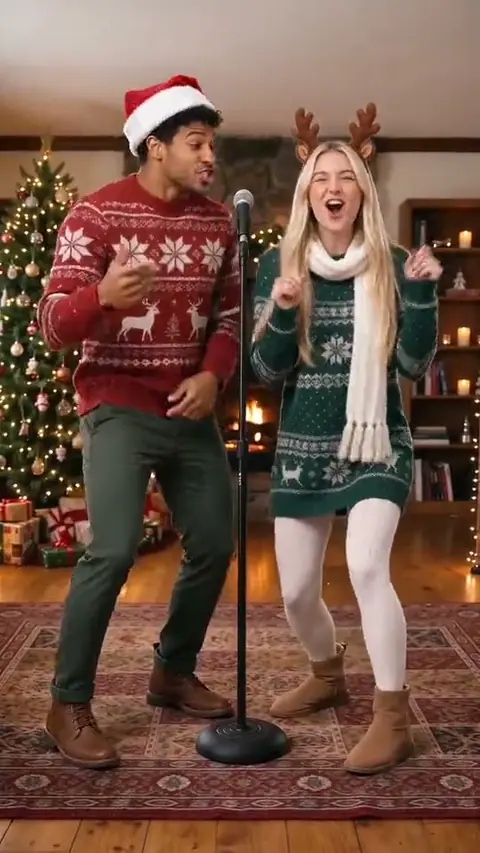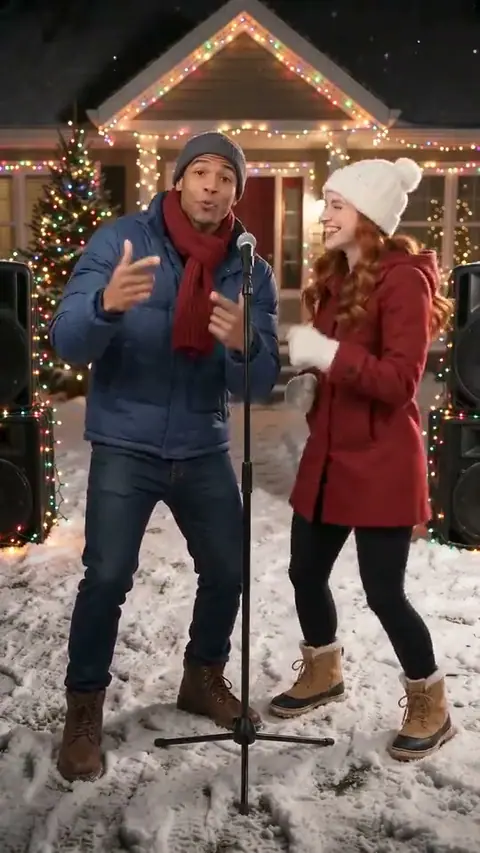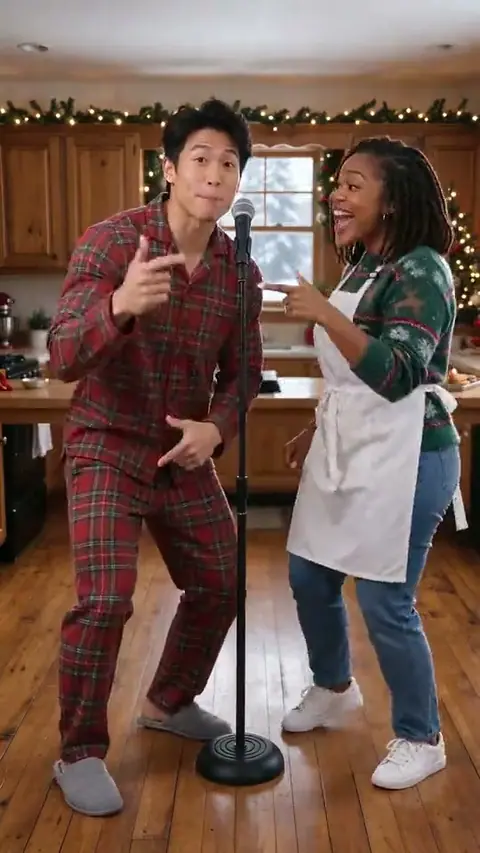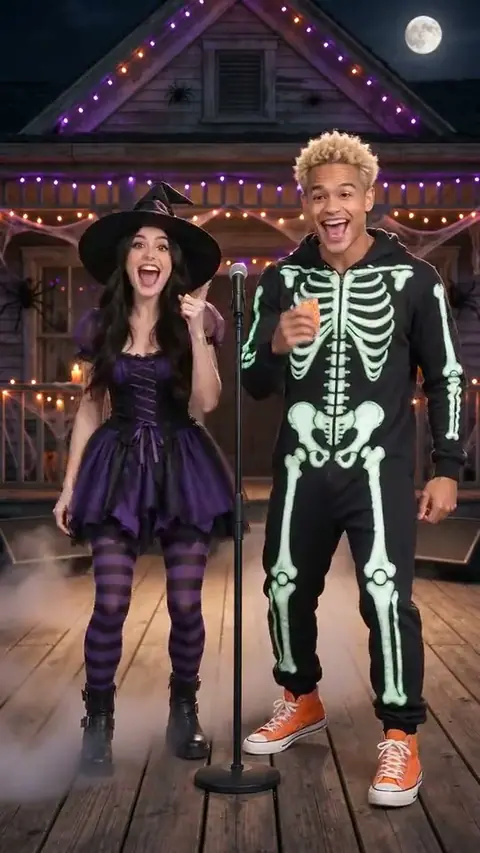
7 stages to rap on
Hype Duo
15s · 9:16 vertical
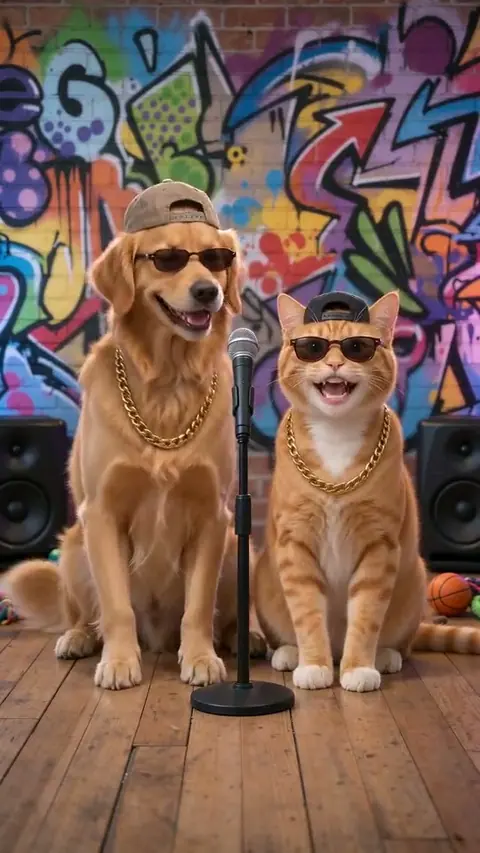
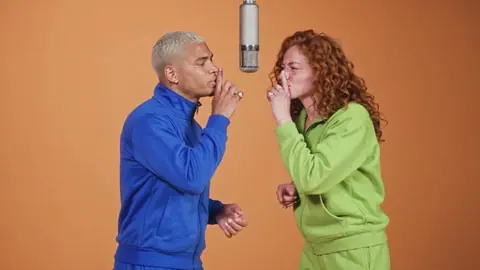
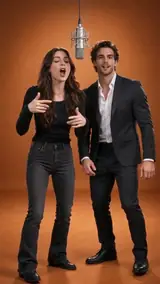
Two familiar faces share the orange studio booth. One mic, a ready-made performance and a scene built for a duo.
Rap on Hype Duo →Roast Battle
15s · 9:16 vertical
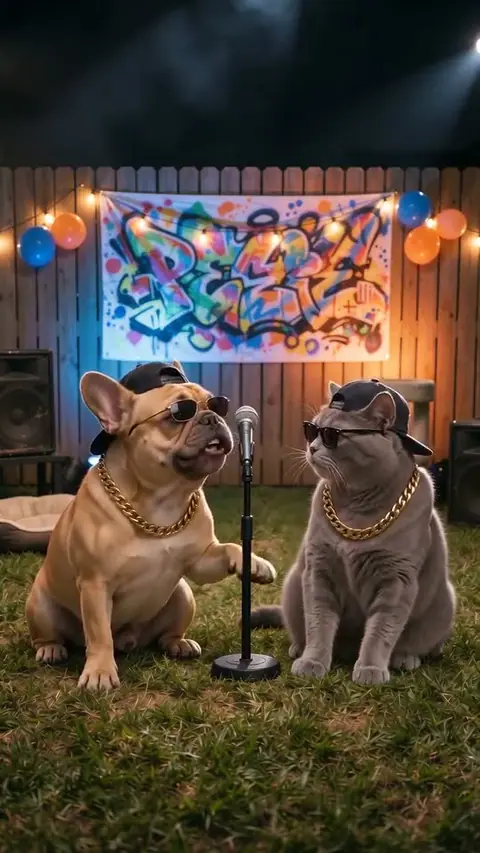
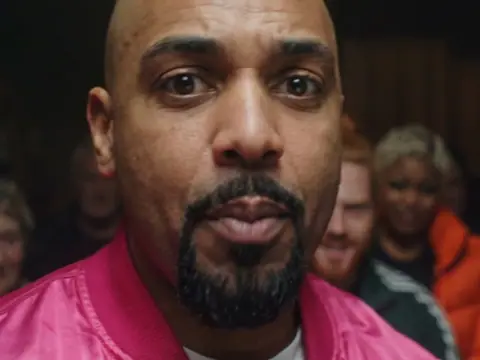
A shared microphone and graffiti backdrop set up a light-hearted battle between two friends.
Rap on Roast Battle →Roast Battle 2
15s · 9:16 vertical
Choose the face-to-face battle scene when your duo needs a little friendly rivalry.
Rap on Roast Battle 2 →Birthday Rap
15s · 9:16 vertical
Put two consenting friends into a birthday-party performance, with the celebration already set.
Rap on Birthday Rap →Birthday Disco
15s · 9:16 vertical
A disco-lit birthday scene adds a party mood to a two-person video greeting.
Rap on Birthday Disco →Grandparents Rap
15s · 9:16 vertical
A retro lounge sets the scene for two adult portraits and a shared performance.
Rap on Grandparents Rap →Glam Night
15s · 9:16 vertical
Dress up the duo with a rooftop-night setting and city lights.
Rap on Glam Night →Rap Studio: the scene and the cast
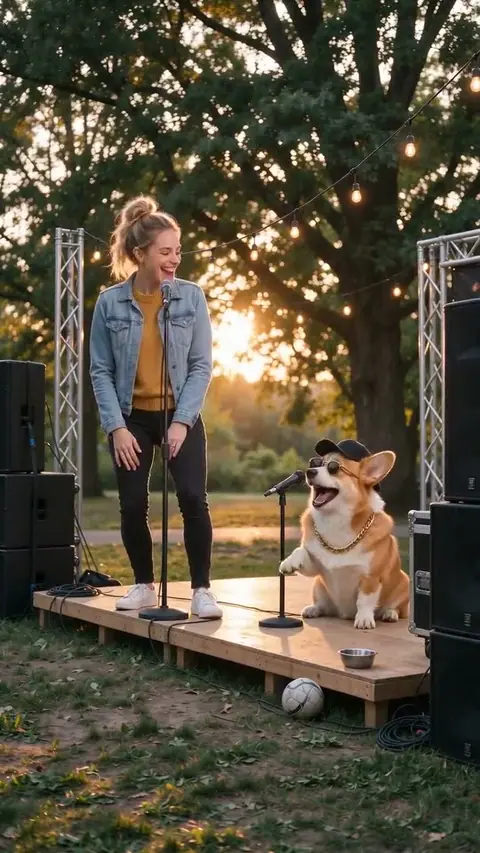
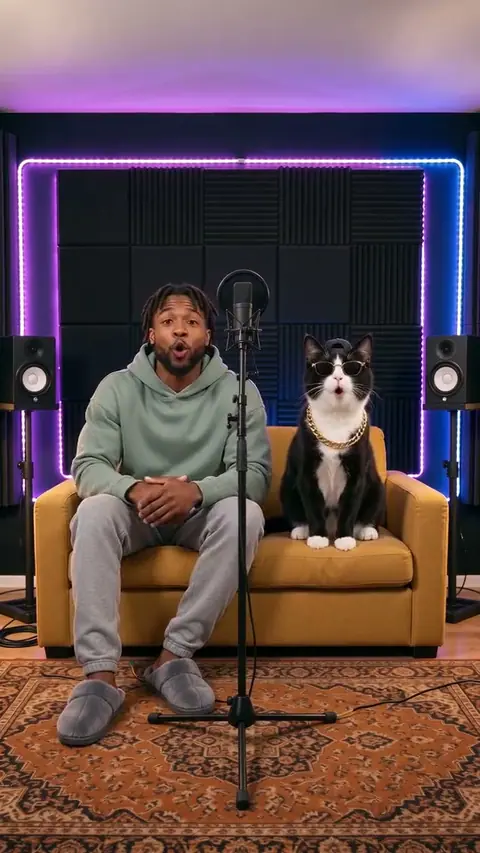
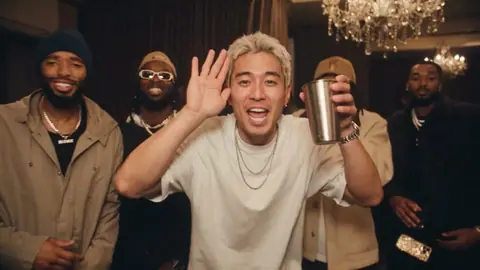
The studio collection brings two performers into the same frame. Pick the booth for a confident duet, the battle set for friendly rivalry, or a celebration scene for a birthday message.
Use this scene for a shared studio performance. Preview the template, check the number of photo slots and review the result before sharing. The edit changes its characters; it does not give permission to use another person’s image or music.
What your photos change
Rap Studio uses the supplied photos as character references. The selected template determines the background, performance and timing. AI likeness can vary, so use a well-lit, unobstructed face and inspect the finished clip.
The Rap Studio preview shows the scene you are choosing. A generated result is a new AI edit, not a recording of you or an endorsement by anyone who inspired the template.
Plan your Rap Studio edit in three steps
- 1Pick a stage, then upload one clear, waist-up photo of you and one of your friend, each facing the camera. Both of you must be adults who agreed.
- 2Tick the consent box and start your video.
- 3Follow the task in your library. When it completes, review the face and movement before downloading or sharing.
Learn more about AI Rap Generator
- Friendly diss track drafts: keep the joke kind - Plan a playful roast around a shared joke, then edit the words before you share them.
- Rap lyrics drafts: find your first few lines - Start with a subject and mood; shape the text into something you would actually say.
- How to make a rap song - Work through a subject, rhythm and hook, then decide how to perform your own writing.
Useful answers before you create
What makes the Rap Studio scene different?
The studio collection brings two performers into the same frame. Pick the booth for a confident duet, the battle set for friendly rivalry, or a celebration scene for a birthday message.
Can I change the Rap Studio soundtrack?
This template keeps its supplied soundtrack. A lyric draft does not replace the performance or generate a new song.
Which photos should I use for Rap Studio?
Use a clear photo for each requested slot, with the subject visible and unobstructed. Every human subject must be an adult who has agreed to this use.
What should I check before sharing this scene?
Check the face, movement and any sound, then keep the AI disclosure. A generated edit should never be presented as genuine footage of someone.
ohfru.com provides independent AI scene edits. A template preview does not imply an endorsement by any person, platform or music owner. Review consent and rights before sharing. Updated November 4, 2026.